Use Apple Pay with Your DOSH Card
Apple Pay is a quick, secure and private way to pay with your DOSH card, whether you’re shopping in-store, online or in apps.

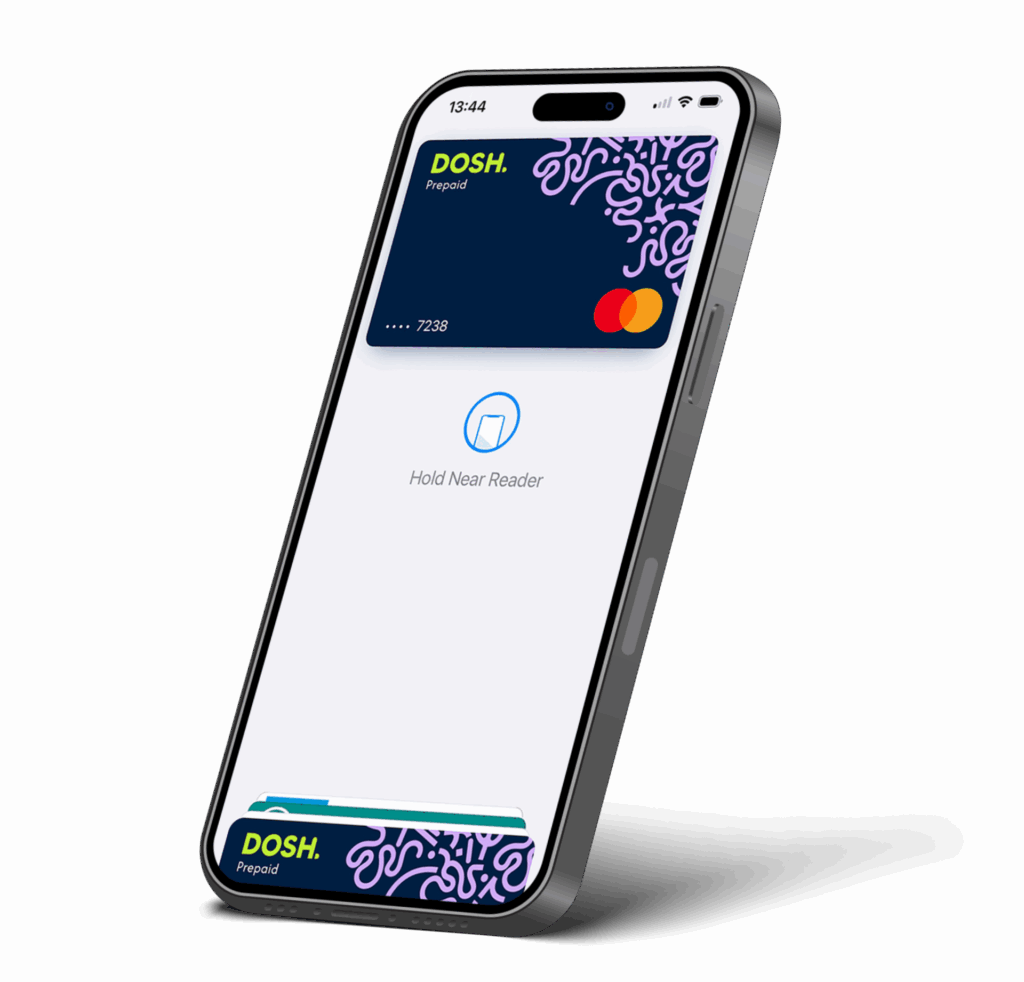
Getting started
Set up Apple Pay with your DOSH card in just a few simple steps. It’s an easy, secure and private way to make payments wherever Apple Pay is accepted.
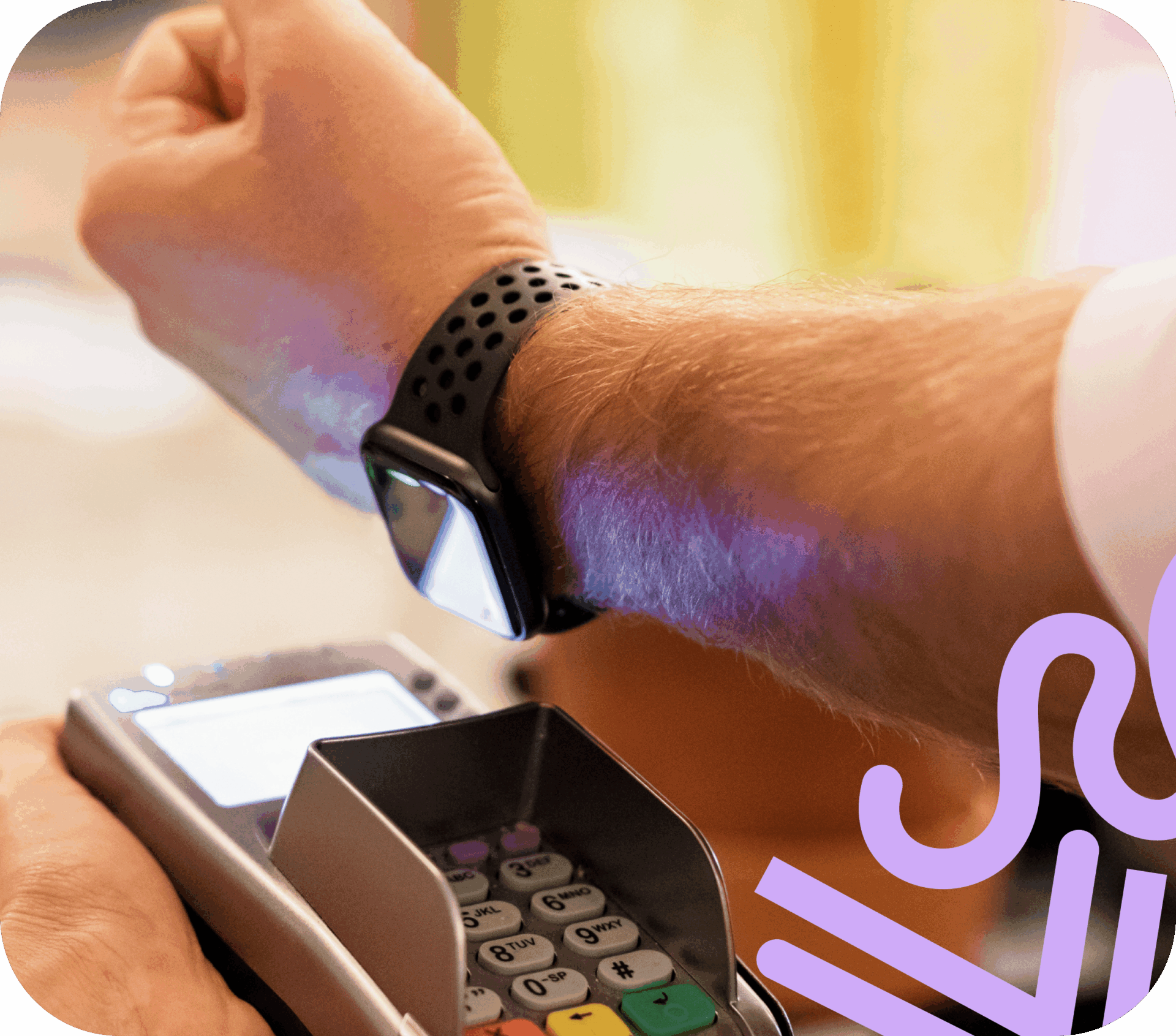
Easy
Whether you’re buying a coffee, doing the weekly shop or paying online, Apple Pay lets you pay quickly using your iPhone, Apple Watch or other Apple device. No need to dig around for your card.
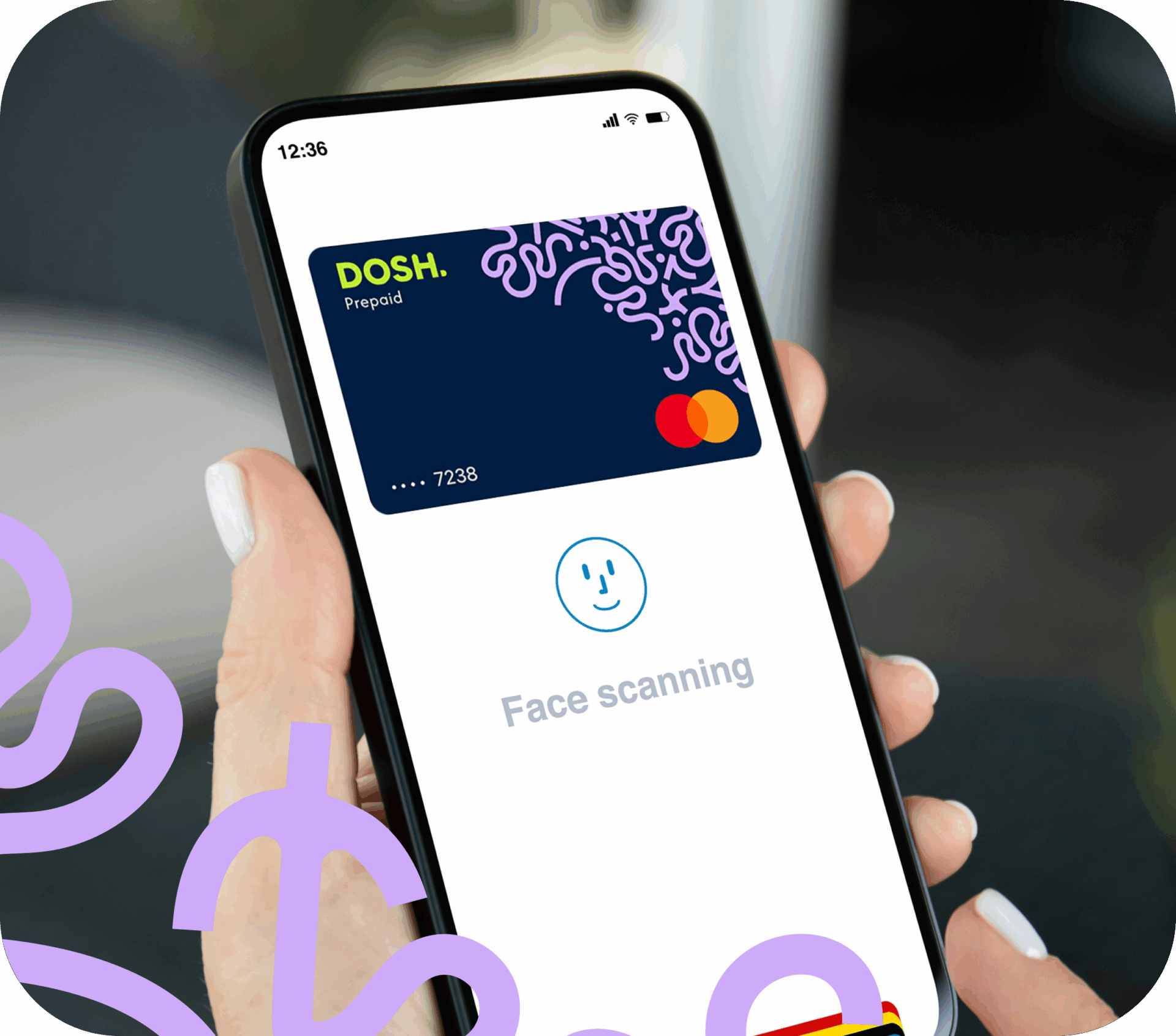
Secure
Apple Pay uses the security features built into your Apple device, including Face ID and Touch ID, to help keep your payments secure. These features are designed so that only you can authorise a payment.
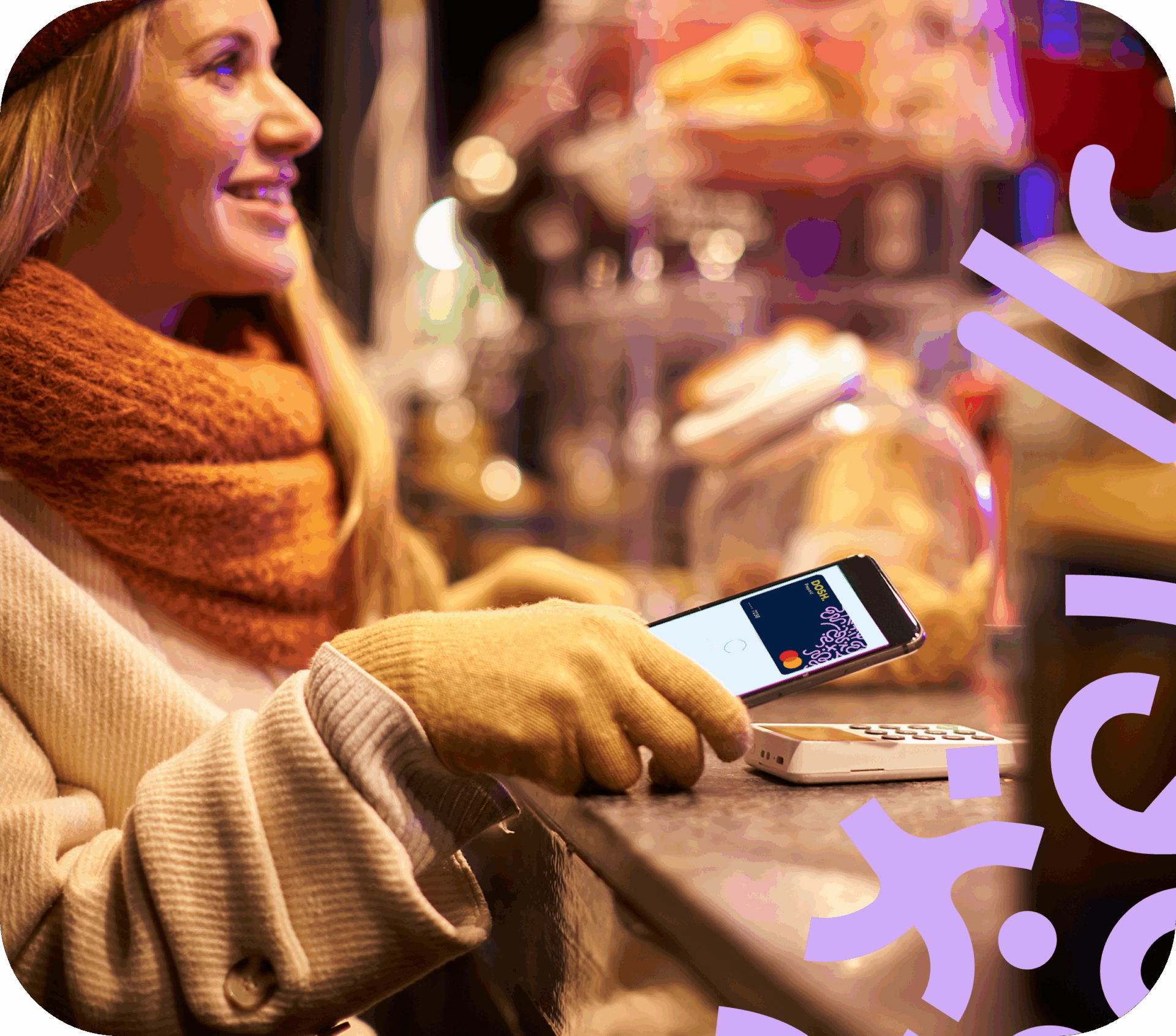
Private
Your card number isn’t stored on your device or Apple’s servers. When you make a payment using Apple Pay, your card number isn’t shared with the retailer. This helps keep your information private and provides an extra layer of protection against fraud.
Add your DOSH card to Apple Pay
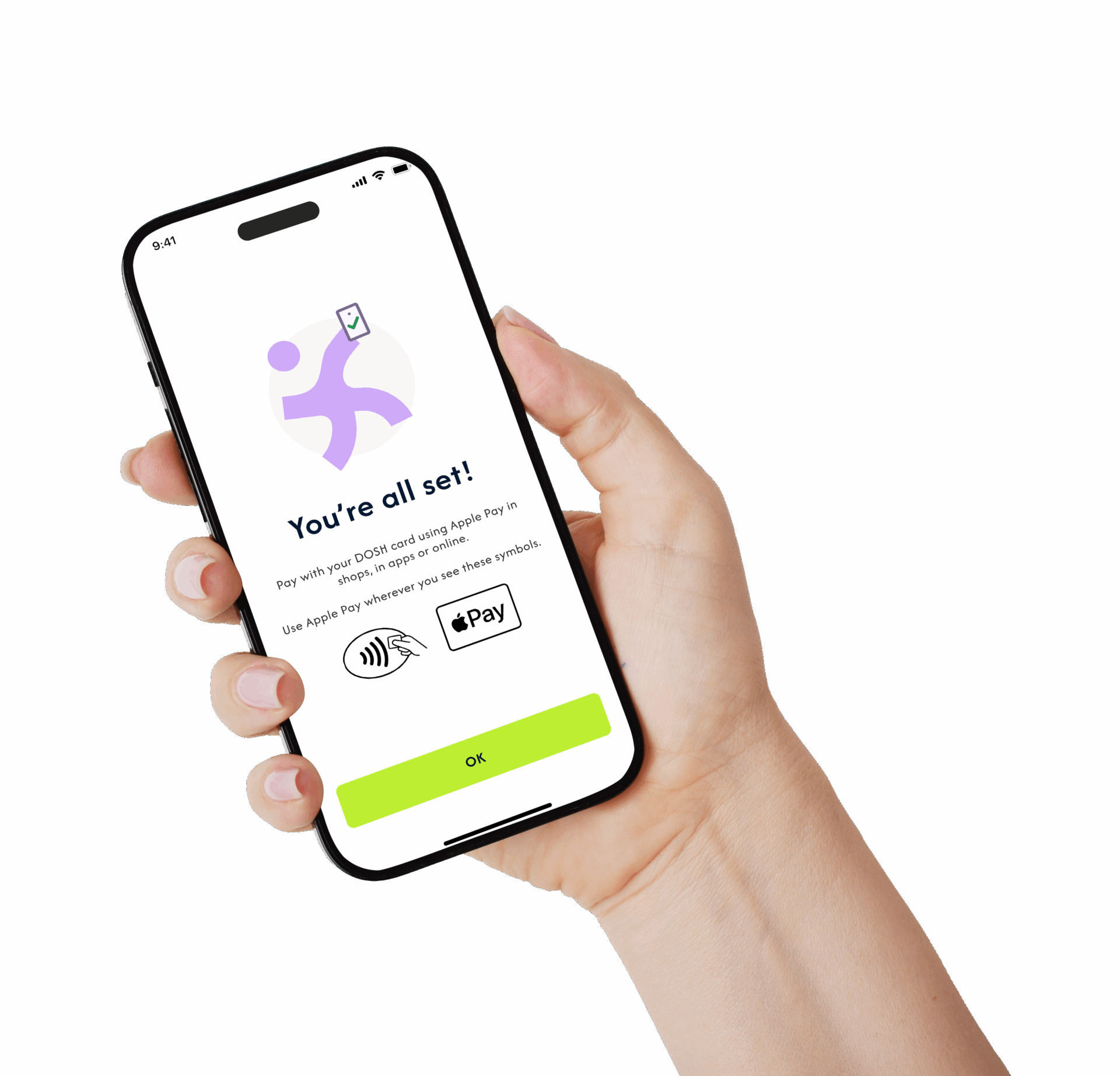
Adding your DOSH card to Apple Pay is quick and simple. You can add your card from Apple Wallet or directly within the DOSH app. Follow the steps below to get started.
iPhone – Open Apple Wallet and tap the “+” icon.
Apple Watch – Open the Apple Watch app on your iPhone, select Wallet & Apple Pay, then tap Add Card.
iPad – Go to Settings, select Wallet & Apple Pay, then tap Add Card.
MacBook Pro – Open System Settings (or System Preferences), select Wallet & Apple Pay, then click Add Card.
Frequently Asked Questions
Apple Pay works with a range of Apple devices, including:
iPhone – iPhone 6 and later for in-store purchases, apps and websites in Safari.
Apple Watch – for in-store purchases and apps (requires an iPhone 6 or later).
iPad – iPad Pro, iPad (5th generation), iPad Air 2, iPad mini 3 and later for apps and websites in Safari.
Mac – Mac models from 2012 onwards when using Safari with an Apple Pay-enabled iPhone or Apple Watch.
You can view the full list of compatible devices on Apple’s support page found here.
You can use Apple Pay anywhere contactless payments are accepted, including in shops, restaurants, cafés, on public transport, online and in apps.
Apple Pay can also be used in many countries and regions around the world wherever the Apple Pay or contactless payment symbol is displayed.
When using Apple Pay abroad, any fees or charges will depend on the terms of your DOSH account.
Yes. You can use Apple Pay with your DOSH card in apps that accept Apple Pay as a payment method. Simply select Apple Pay at checkout to complete your purchase quickly and securely.
Apple Pay can be used in many popular apps, making it easy to pay without entering your card details each time you shop.
Adding your DOSH card to Apple Pay is quick and easy. Simply follow the steps for your Apple device below.
iPhone – Open Apple Wallet and tap the “+” icon.
Apple Watch – Open the Apple Watch app on your iPhone, select Wallet & Apple Pay, then tap Add Card.
iPad – Go to Settings, select Wallet & Apple Pay, then tap Add Card.
Mac with Touch ID – Open System Settings (or System Preferences), select Wallet & Apple Pay, then click Add Card.
Once your card has been added, you’ll be ready to make purchases wherever Apple Pay is accepted.
Open Apple Wallet on your iPhone, then touch and hold your DOSH card and drag it to the front of your cards. Your DOSH card will then become your default card for Apple Pay payments.
Yes. When you use Apple Pay with your DOSH card, your card number isn’t shared with the retailer when you make a payment in-store, online or in an app.
Instead, Apple Pay uses a unique device account number that is encrypted and securely stored on your device. Each payment is authorised using a unique, one-time security code, helping to keep your payment information protected.
Apple Pay does not have a specific transaction limit. However, some retailers may apply their own contactless payment limits and only accept payments up to a certain amount.
Payments made online, in apps and through Safari are not subject to contactless payment limits.
Both DOSH and Apple Pay can send instant payment notifications. This means you may receive two notifications each time you make a purchase using Apple Pay with your DOSH card.
If you’d prefer to receive a single notification, you can turn off transaction notifications for your DOSH card in Apple Wallet:
- Open Apple Wallet.
- Select your DOSH card.
- Tap the “i” (information) icon.
- Open the Transactions section.
- Turn off Transaction History.
You’ll continue to receive spending notifications from DOSH, but Apple Wallet notifications for your DOSH card will be switched off.
No. Freezing your DOSH card will also stop it from being used through Apple Pay. This helps keep your account secure if your card is lost, misplaced or you don’t want it to be used temporarily.
Once you unfreeze your card in the DOSH app, you can continue using it with Apple Pay as normal.
If your Apple device is lost or stolen, you can use Apple’s Find My feature to locate and secure it. You can remotely lock your device, change your password or erase your personal information if needed.
If you’re concerned about the security of your DOSH card, you can also freeze your card in the DOSH app at any time.
If your DOSH card is lost or stolen, you can freeze it instantly in the DOSH app. While your card is frozen, it can’t be used for payments, including through Apple Pay.
If you find your card, simply unfreeze it in the DOSH app and you’ll be able to use Apple Pay again.
If you order a replacement card, your new DOSH card will automatically update in Apple Wallet once it has been activated. There’s no need to add it again manually. If you’d like your replacement card to be your default payment card, simply move it to the front of your cards in Apple Wallet.